Before you start
- No other version of Microsoft Office may be installed on the computer. Remove earlier versions completely.
- You need an internet connection for the download and the activation.
- Microsoft Teams is not part of the package and is installed separately.
- Have the product key you received by email to hand.
Important: remove leftovers from earlier versions
If an old installation is left behind, activation often fails. Uninstall Office from the control panel, then clean up with the Microsoft tool.
This also applies to versions that were already on the computer when you bought it: Microsoft 365 trials, a pre-installed Office 2024 preview and OneNote installed separately. All of it has to go before you enter your key.
The old Microsoft removal tool completely deletes every Office version from 2010 up to Microsoft 365, including the leftovers a normal uninstall leaves behind.
Download the removal tool Opening the file starts a wizard that walks you through the removal. Restart the computer once when it is done.⬇️ Download
Choose your language – we recommend the 64-bit version (suitable for practically all modern PCs).
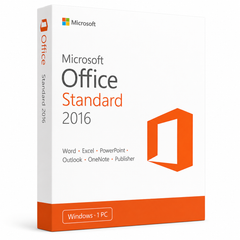
Install & activate Microsoft Office 2016 Standard
This guide takes you step by step through the download, installation and activation of Microsoft Office 2016 Standard – clearly explained.
Installation & activation in 4 steps
Download the ISO file
Download the version you want using the download table above. If your device has more than 4 GB RAM, we recommend the 64-bit version. This ISO file is the basis for installing the product.
Mount the ISO file
Once the download has finished, right-click the downloaded file and select the “Mount” option from the context menu.
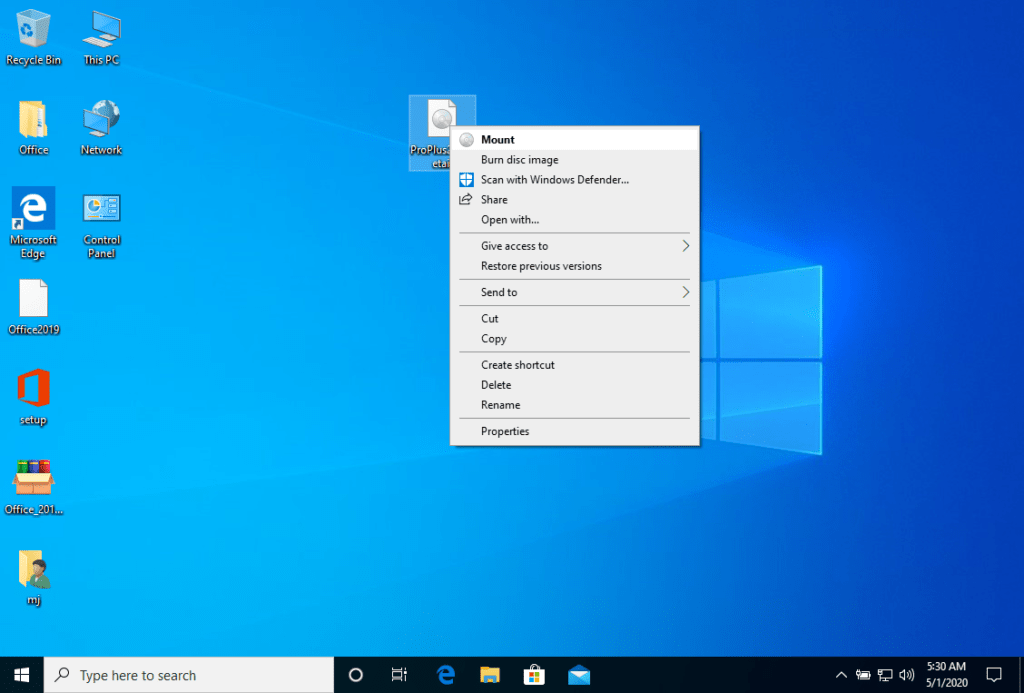
Once the downloaded ISO file has been mounted, you can access it via “This PC” just like a DVD drive. From there you can start the installation program.
Complete the installation & enter the product key
Complete the program installation and enter the “activation key” during the process or at the end.
As soon as the download and installation are complete, enter the activation key the first time you start an application from the Microsoft Office suite – it is the first thing you will be asked for.
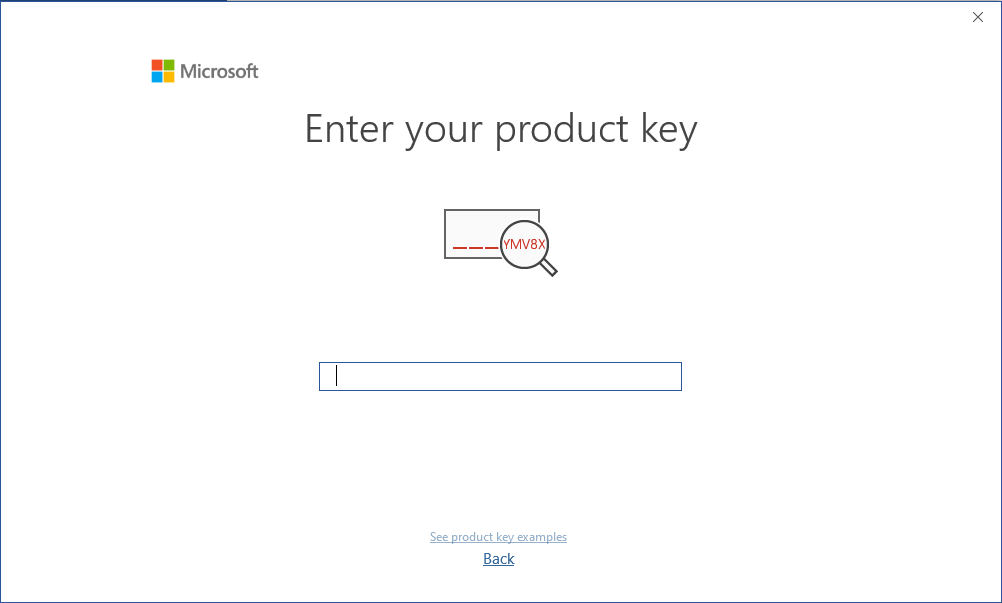
During the installation of Microsoft Office you should have been prompted to enter the product key supplied with your purchase. If that did not happen, start Word, click on “File” and then on “Account” and enter the key there. Otherwise your Microsoft Office will turn into a trial version after 30 days.
Alternative: WinCDEmu (e.g. Windows 7)
The mounted image should appear on your computer. If it does not (AS IS THE CASE ON WINDOWS 7), you have to use an alternative program to mount the product image, for example WinCDEmu, which you can download via the following link:
Use this program to create a virtual drive so that you can install your program.
System requirements
- 🖥 1 GHz processor or faster (x86/x64)
- 🧠 1 GB RAM (32-bit) / 4 GB RAM (64-bit)
- 💾 4 GB of free hard disk space
- 🎮 DirectX 9 graphics with WDDM 1.0 driver or higher
We wish you a successful installation. Should you have any problems or questions, our customer service is available to you at any time – we will help you as quickly as possible.